How to Convert PDF Into Text: A Practical Guide
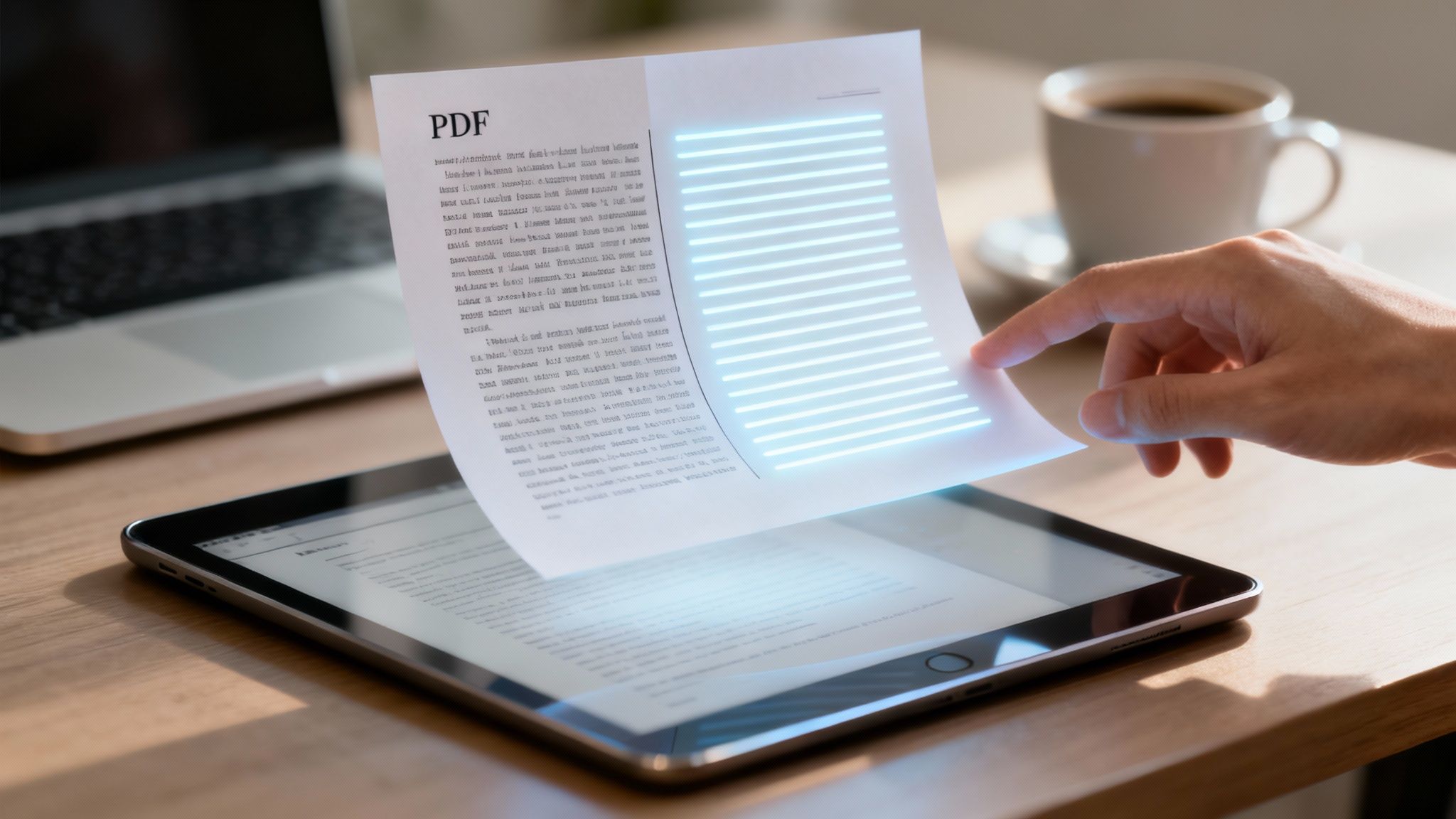
Getting text out of a PDF can be surprisingly straightforward. Most of the time, you can just copy and paste directly, use a free online converter tool, or, for scanned documents, bring in Optical Character Recognition (OCR) software. The best choice really just depends on your specific file and what you plan to do with the text once you've got it.
Choosing the Right Way to Convert Your PDF
We all need to pull text from a PDF now and then, but why you're doing it is what really matters. Are you trying to tweak a legal contract, grab some quotes from a research paper for a presentation, or maybe make a document accessible for a screen reader? Each of these tasks is best handled with a different tool.
Learning how to extract text from PDF is a crucial skill. For a simple, text-based PDF, you might get away with a quick copy-and-paste. But if you’re dealing with a scanned document that’s essentially an image of text, you'll need something more powerful.
Find Your Best Method Fast
Picking the right approach from the start will save you a ton of time and headache. If you only need to grab a few paragraphs from a report, downloading a dedicated app is probably overkill. On the flip side, trying to manually retype a 50-page scanned manuscript is a recipe for disaster.
To make it easier, this decision tree can point you in the right direction based on what kind of PDF you have and what you want to achieve.
As you can see, the first big question is whether your PDF is text-based or image-based. After that, your need for audio playback helps narrow it down even further.
To help you decide at a glance, here’s a quick comparison of the common methods.
Choosing Your PDF to Text Conversion Method
A quick comparison to help you select the best method for your specific PDF conversion needs.
Method | Best For | Pros | Cons |
|---|---|---|---|
Copy & Paste | Grabbing small snippets from text-based PDFs. | Fast, free, and requires no extra tools. | Fails on scanned/image-based PDFs; formatting often breaks. |
Online Converters | Quick, one-off conversions of text-based or simple scanned PDFs without installing software. | Convenient and accessible from any device. | Privacy concerns with sensitive documents; may have file size limits. |
Desktop OCR Software | Batch processing, complex layouts, and scanned documents where accuracy is critical. | High accuracy, works offline, advanced features. | Often comes with a cost; requires installation. |
Speak4Me App | On-the-go conversion, turning scanned PDFs into audio, and accessibility. | Secure, combines OCR with text-to-speech, easy to use on mobile. | Requires an iOS device. |
Each method has its place. Your choice comes down to balancing speed, accuracy, and security for the task at hand.
Why Mobile Conversion Matters
The need to work with documents on the go has exploded. PDFs are everywhere—there are an estimated 2.5 trillion of them floating around, and we process over 100 million every week. While many of us still edit on a desktop, a massive 63% of PDF views now happen on mobile devices. This shift screams for better tools that let us work with files from our phones and tablets.
Key Takeaway: The real goal isn't just to convert a file. It's about making the information inside it truly useful and accessible, no matter where you are. Turning a static PDF into editable text or listenable audio completely changes how you can engage with it.
For students and professionals who need to review documents during a commute or between meetings, a mobile solution is no longer a "nice-to-have"—it's essential. An app like Speak4Me gives you a powerful way to not only convert PDFs but also listen to them, turning travel time into a chance to catch up on reading.
Ready to make your documents work for you? Download Speak4Me free on iOS.
Quick Ways to Pull Text from Simple PDFs
When you're working with a straightforward, text-based PDF—the kind where your cursor easily highlights words and sentences—you probably don’t need any special software. The fastest solutions are often the ones you already have. These methods are perfect for when you just need to grab a snippet of information without a lot of fuss.
The go-to move for most of us is a simple copy and paste. Just open the PDF, select the text you want, and use Cmd+C on a Mac or Ctrl+C on Windows to copy it. Then, just paste it wherever you need it, like a Word doc or an email. It’s quick, second nature, and great for snagging a quote for a presentation or an address for your contacts.
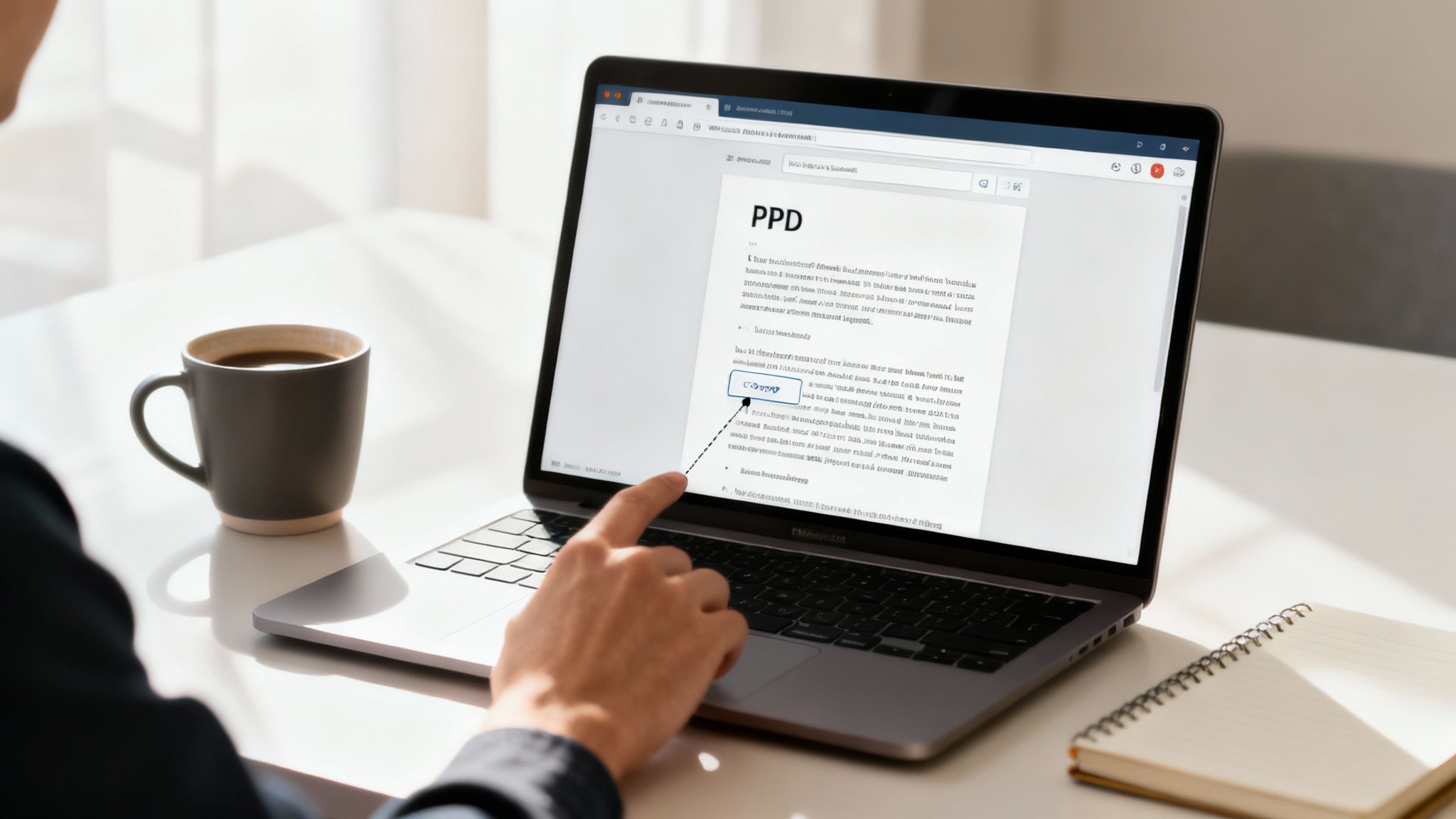
But here's the catch: formatting. As soon as you paste, you'll almost certainly lose all the bolding, italics, and bullet points. Even worse, you might end up with a wall of jumbled text and weird line breaks, which means you’ll have to spend time cleaning it all up manually.
Using the Tools Already on Your Computer
Beyond the copy-paste shuffle, your computer and browser likely have built-in features that can do a much cleaner job of extracting text. You just have to know where to find them. These options are a nice middle ground between basic pasting and downloading a whole new program.
For instance, if you're a Mac user, you've got a great tool hiding in plain sight.
macOS Preview: Your Mac's default PDF viewer can export a whole document as plain text. Open the PDF in Preview, head to
File > Export, and in the format dropdown, just chooseText (.txt). This strips out all the fancy formatting but leaves you with a clean text file of the entire document—way faster than copying page after page.
Your web browser is also more powerful than you might think. Chrome, Firefox, and Edge all open PDFs without a problem. While they don't usually have a "Save as Text" button, they give you a reliable space to access and copy text without needing another app. This is a lifesaver when you get a PDF in an email and just need to pull out some info on the fly.
Pro Tip: If you're still getting messy text from your browser, try the "Print" command. Instead of sending it to a printer, choose "Save as PDF." This little trick can re-encode the file, often making the text in the new version much cleaner and easier to work with.
When the Simple Fixes Aren't Enough
These quick-and-dirty methods are fantastic for simple jobs. But what if you want to listen to the document on your commute? Or what if the PDF is just an image of a scanned page, and you can't select any text at all? This is where the basic tools hit a wall.
You could try to string a few different tools together, but that gets old fast. For anyone who works with documents on their iPhone, a dedicated app like Speak4Me is a much smoother way to go. The app can handle all kinds of PDFs, keep formatting intact, and offer features that go way beyond simple text extraction, like turning the document into audio. To explore this further, take a look at our guide on how to read PDFs in different ways.
These built-in solutions are a great first step. They solve immediate problems without costing a dime. But for a truly efficient workflow, especially when you're on the move, having a powerful tool in your pocket is a game-changer. It means you can get the information you need, in the format you want, no matter where you are.
Ready for a seamless mobile experience? Download Speak4Me free on iOS and turn any document into editable text or audio instantly.
Using OCR to Read Scanned Documents
So, what happens when your PDF isn't a text document at all, but just a picture of one? If you've ever dealt with a scanned contract or a photo of a textbook page, you know the headache of not being able to copy, search, or edit the text. This is exactly the problem that Optical Character Recognition (OCR) was built to solve.
At its heart, OCR is a technology that looks at an image with text—like a scanned PDF or a photograph—and translates the characters it sees into real, machine-readable text. Think of it as a digital assistant that can read a picture and type out all the words for you, turning a static image into a dynamic, useful document.
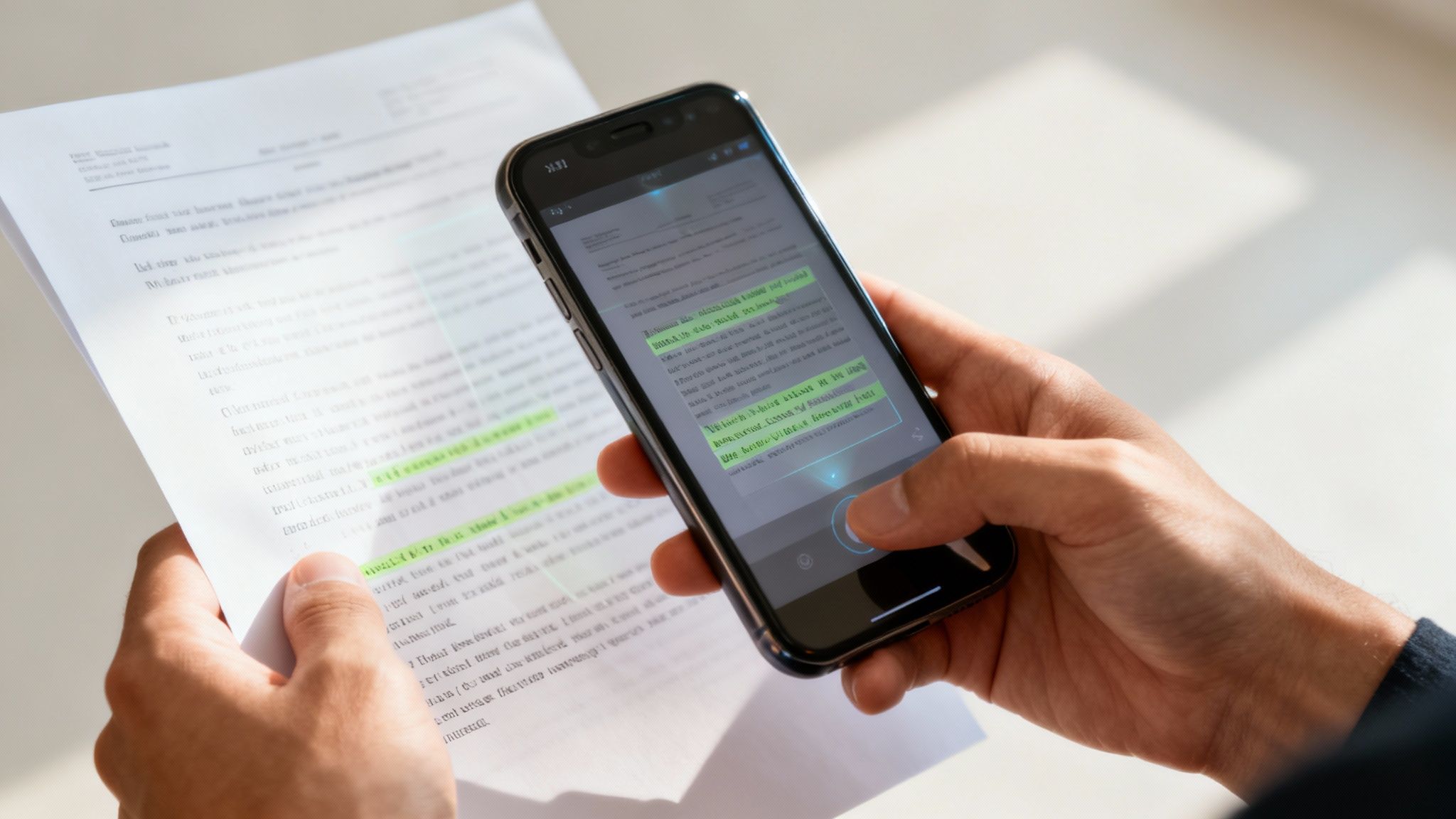
This process is what unlocks the information trapped inside image-based files. Suddenly, you can search for a keyword in a 100-page scanned report or copy a quote from a photo of a book without having to retype a single word. For anyone who works with paperwork, research, or historical archives, OCR is an absolute game-changer.
How AI Has Supercharged OCR Accuracy
Early OCR was a step in the right direction, but it was often clumsy. It would trip over unusual fonts, skewed pages, or poor lighting, giving you a messy result. Today, artificial intelligence has completely transformed the technology. Modern OCR tools are driven by sophisticated AI and deep learning, allowing them to recognize text with incredible precision.
Optical Character Recognition is the key that makes scanned PDFs useful. By 2025, the best AI-powered OCR models have become remarkably good, using deep learning to boost accuracy and speed while keeping the document's original structure intact. The top-tier tools, both open-source and commercial, can now deliver high-accuracy conversions across many languages and output the text into structured formats. You can find out more about the progress in AI OCR models and their capabilities.
This AI-first approach means the technology can now:
Identify Various Fonts and Handwriting: Modern OCR can read everything from standard Arial to complex cursive scripts.
Understand Document Layout: It recognizes columns, tables, and headers, preserving the original formatting instead of just dumping out a wall of text.
Correct for Imperfections: It can automatically adjust for tilted pages, shadows, and blurry images to improve the final result.
This leap in accuracy makes a huge difference in how we handle documents, turning previously locked-down files into fully accessible sources of information.
Practical Tips for Getting the Best OCR Results
While the tech is powerful, the quality of your output still depends heavily on the quality of your input. To get the cleanest text conversion possible from your scanned documents, keep these practical tips in mind. A little bit of prep work can save you a ton of time on corrections later.
1. Start with a High-Quality Scan A clear, crisp image is the single most important factor for accurate OCR.
Resolution Matters: Aim for a scan resolution of at least 300 DPI (dots per inch). This gives the software enough detail to clearly distinguish between characters.
Good Lighting is Key: If you're snapping a photo with your phone, make sure the document is evenly lit without harsh shadows or glare. Natural, indirect light usually works best.
Keep it Flat: A crumpled or folded page can distort the text, making it much harder for the OCR engine to read. Smooth out the document before you scan it.
2. Choose the Right Language Settings Most OCR tools support multiple languages, but they need to know what they're looking for.
Specify the Language: If your document is in Spanish, make sure you select "Spanish" in the tool's settings. This helps the software use the correct character set and dictionary for its analysis.
Handle Multi-Language Documents: Some advanced tools can detect multiple languages in a single document, but it’s always a good idea to check this setting if your results seem off.
Real-World Scenario: Imagine you're a student scanning a chapter from a history textbook. The page has footnotes, images with captions, and two columns of text. An older OCR tool might jumble all that into one unreadable mess. A modern, AI-powered tool, however, will recognize the layout, separate the columns, and correctly extract the captions, giving you a clean, editable text file that's ready to use for your notes.
This is precisely where an app designed for this job shines. Instead of relying on a clunky desktop program or a questionable online service, you can handle it all right from your phone. An app like Speak4Me integrates this powerful OCR technology directly, letting you scan a document with your camera and instantly get text that it can read aloud to you.
Experience powerful OCR in your pocket. Download Speak4Me free on iOS and unlock the text from any scanned document.
Finding the Best Online PDF Converters
Sometimes you just need to pull text from a PDF without the fuss of installing new software. This is where online converters are a lifesaver. These are web-based tools that do all the heavy lifting on their own servers. You just upload your file, and in a few moments, you get a text document back. It’s perfect for those quick, one-off jobs when you're on the go or using a computer that isn't yours.
But let's be honest, they're not all the same. The difference in quality, ease of use, and—most importantly—data privacy can be huge from one site to the next. Picking a good one is crucial for a hassle-free and secure experience.
What to Look for in an Online Tool
When you’re sifting through the options, a few things should be at the top of your checklist. Looking past the slick design can save you a lot of headaches and keep your information safe.
Here's what to check for:
High Accuracy: The tool needs to extract text without turning it into a garbled mess. This is especially true for simple, text-based PDFs. If you're working with scanned documents, make sure the service specifically mentions having OCR technology.
Ease of Use: It should be dead simple. Upload the file, pick your format (like .txt or .docx), and hit download. If the interface is cluttered or the steps are confusing, just move on.
Clear Privacy Policy: This is a big one. You're handing your document over to a stranger's server. A trustworthy service will be upfront about how long they keep your files and if they're deleted automatically.
Reasonable Limits: Most free tools have a catch, like a cap on file size or the number of conversions you can do in a day. Just make sure their limits work for what you need to do.
It’s no surprise that these tools are becoming more popular. The global market for PDF software hit USD 2.15 billion in 2024 and is projected to skyrocket to USD 5.72 billion by 2033. That growth is all about our increasing need to manage digital paperwork efficiently. You can read more about the growth of the PDF software market to see just how big this trend is.
The Big Question: Security and Privacy
Here’s the single biggest drawback with online converters: the security risk. The moment you upload that file, it's out of your hands. For anything sensitive—files with personal details, financial records, or confidential company info—using a public online tool is a huge gamble.
Key Takeaway: Never upload sensitive or confidential documents to a free online PDF converter. The convenience is not worth the potential risk of a data breach or misuse of your information.
For those critical documents, an offline program or a secure app on your phone is always the safer bet. While many modern converters offer cool AI features, like AI tools for interacting with financial PDFs, the fundamental privacy issue doesn't go away. This is exactly where an app like Speak4Me has a clear edge for mobile users, since it handles everything right on your device, keeping your data completely private.
Walking Through a Typical Online Conversion
Let's say you have a non-sensitive, 10-page report and you need to grab the text from it.
The process is usually pretty painless. You'd go to the converter's website and look for the big "Upload File" or "Choose PDF" button. Once you select the document from your computer, the tool works its magic. A few seconds later, you get a link to download the converted text file. Simple. For more complex needs, like querying the PDF directly, you can explore our guide on the best tools for chatting with PDF documents.
Even though the workflow is easy, it's worth repeating: for any document you wouldn't want posted on a public bulletin board, the risk is very real. Your files are sent across the internet and stored, even if briefly, on a server you don’t control. For secure conversions on the move, a dedicated app like Speak4Me is simply the smarter choice.
Keep your documents private and accessible. Download Speak4Me free on iOS.
Converting PDFs From Anywhere on Your Phone
Let's face it, your office isn't always an office. It’s a coffee shop, an airport terminal, or your kid's soccer practice. In a world where work happens everywhere, your tools have to keep up. The idea of being tied to a desktop just to pull some text from a PDF feels incredibly outdated. This is where mobile apps have completely changed the game.
Imagine getting a last-minute project brief in a PDF right before a big meeting. Instead of scrambling to find a laptop, you can just use your phone. A good mobile app lets you extract key points instantly, and some can even read them to you while you’re walking down the hall. This isn't just a minor convenience—it's about making your workflow as flexible as you are.
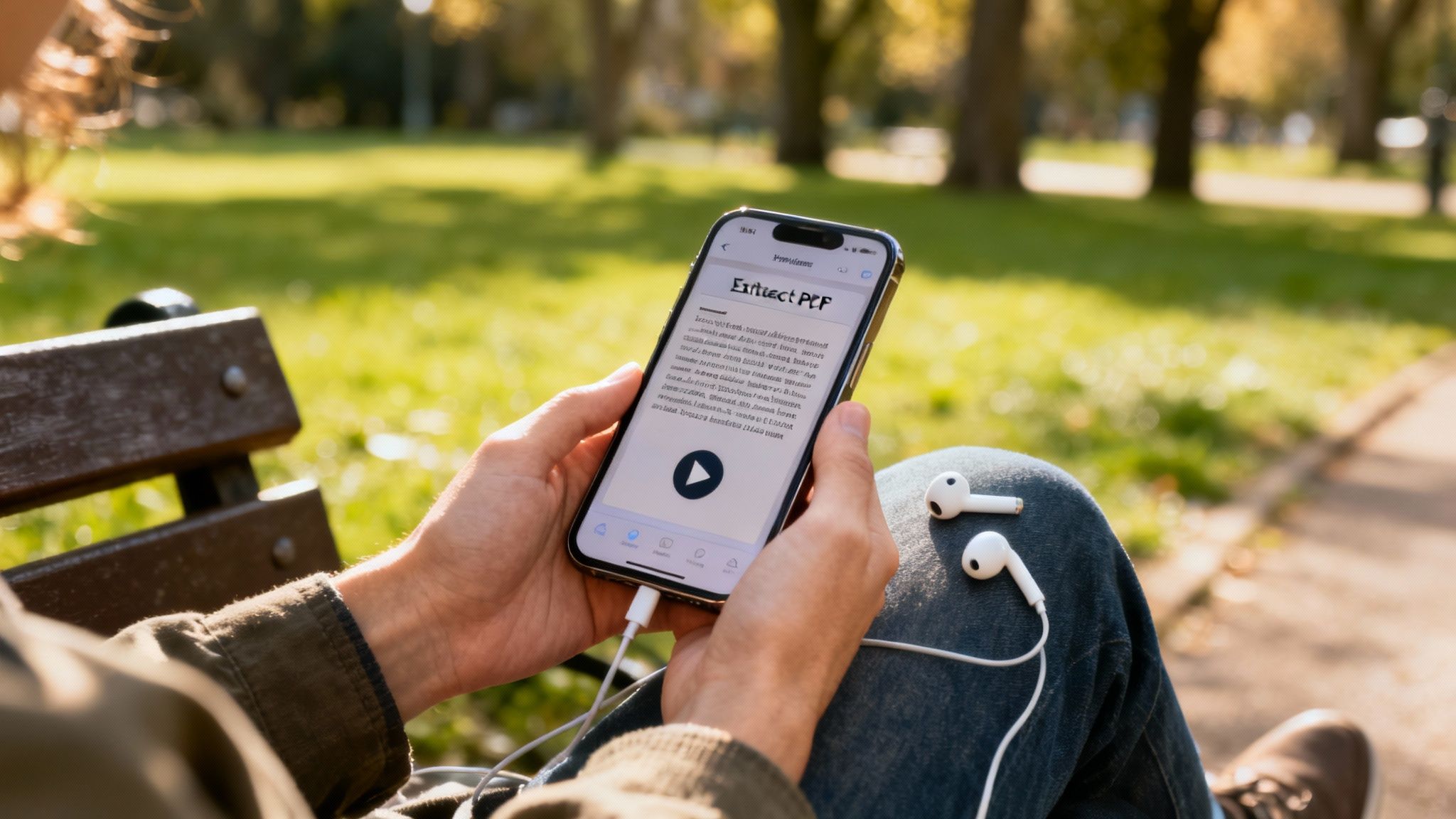
Having powerful tools on your phone isn't a luxury anymore; it's essential.
The Speak4Me Advantage: From Text to Audio
Lots of apps can pull text out of a file. But the best tools do more than the bare minimum. That’s exactly where Speak4Me shines. It wasn't just built to grab text from a PDF; it was designed to immediately turn that text into clear, natural-sounding audio. Suddenly, that dense report or long-winded article becomes something you can listen to.
The whole process is refreshingly simple. You can import a PDF from anywhere—your phone's files, an email, or even a web link. The app’s OCR engine kicks in for scanned documents, giving you clean text that’s ready to be heard right away.
Here's a tip: Listening to documents lets you be productive in moments that reading can't fill. You can absorb information during your commute, at the gym, or while making dinner. It’s a game-changer for multitasking.
This feature is a huge win for productivity, but it's also incredible for accessibility. It supports different learning styles and makes content much more approachable for anyone with reading difficulties. If you're curious, you can learn more about how to convert your PDF documents into audio and find the best listening experience.
Practical Scenarios for Mobile Conversion
The true value of a mobile PDF converter pops up in all sorts of everyday situations. Think of it less as a niche tool and more as a daily utility.
Here are just a few ways it can make a real difference:
For Students: You've been assigned a mountain of reading as PDFs. Instead of burning your eyes out on a screen for hours, you can convert the articles to audio with Speak4Me. Listen while you walk to class or during your workout. It's a great way to make study time more flexible and effective.
For Busy Professionals: Your colleague sends over a 30-page market analysis as you're heading out the door. Just have the app read you the executive summary on your commute home. You'll walk in the door already prepped for tomorrow's meeting.
For Lifelong Learners: We all have that "to-read" folder filled with interesting articles and whitepapers saved as PDFs. A mobile app lets you turn that pile of guilt into a "to-listen" playlist, making it easy to catch up on industry news during your downtime.
In every case, the ability to convert and listen on the go just removes friction. It weaves work and learning into the fabric of your day.
Desktop vs. Mobile PDF Conversion
While desktop software definitely has its place—especially for heavy-duty batch processing—mobile apps offer a blend of immediacy and versatility that a computer just can't touch. When you're deciding what works for you, it helps to compare them side-by-side.
Feature | Desktop Tools | Speak4Me (Mobile App) |
|---|---|---|
Portability | Tied to a specific computer. | Always with you on your phone. |
Primary Function | Primarily text extraction and editing. | Combines text extraction with text-to-speech. |
Best Use Case | Bulk conversions, complex formatting. | On-the-go productivity, multitasking, accessibility. |
Input Methods | Typically requires file uploads from a drive. | Can import from files, web links, email, or camera scans. |
Speed | Can be slowed down by complex software. | Instant conversion for immediate use. |
At the end of the day, the best tool is the one that actually fits your life. For a modern, mobile workflow, an app that turns any document into an audio file delivers a level of flexibility that's tough to beat. It’s all about making your content work for you, on your schedule.
Transform your documents into audio and boost your productivity. Download Speak4Me free on iOS.
Frequently Asked Questions About PDF to Text Conversion
Knowing the different ways to pull text from a PDF is a great start, but theory only gets you so far. In the real world, you'll run into documents that fight back. They might have complex layouts, be absolutely massive in size, or be locked down with passwords.
Let's walk through some of the most common hurdles and how you can get past them. Think of this as the troubleshooting guide for when things don't go as smoothly as planned.
How Can I Keep the Original Formatting?
This is the big one, isn't it? You run a conversion and your beautifully structured report with headings, tables, and columns turns into a giant, messy wall of text. It’s a classic problem.
The solution really boils down to the complexity of your PDF and the tool you're using.
For simple documents: If you're just dealing with paragraphs, bold text, and maybe a few bullet points, most tools can handle it. The trick is to export to a .docx (Microsoft Word) file instead of a plain .txt file. This tells the converter to try and keep the styling intact.
For complex layouts: When you've got multi-column articles, images with captions, or detailed tables, you’ll need something with more muscle. High-end OCR software is designed for this, often using sophisticated analysis to understand the layout and rebuild it in the new format.
Ultimately, you have to decide what’s more important. A plain text file is clean and simple to work with, but a formatted Word document can save you a ton of time rebuilding the layout manually.
Pro Tip: If a direct-to-Word conversion still looks jumbled, try an unconventional workaround. Try converting the PDF to an HTML file first. Browsers are amazing at rendering layouts correctly, and you can usually copy and paste from the web page into your word processor with much better results.
What’s the Best Way to Handle Large Files?
Ever tried uploading a 200-page PDF to a free online converter only to have your browser crash? You're not alone. Most of these web-based tools have pretty strict file size limits, often around 10-15 MB.
When you're dealing with a huge file, online tools just aren't the right fit. Your best bet is to switch to a desktop application. Since they use your computer's own power, they aren't bound by upload limits or server timeouts and can chew through large documents without any trouble.
Another great option, especially when you're on the move, is a good mobile app. Something like Speak4Me is perfect for this because it processes the file right on your phone. This means you don't have to deal with slow uploads, making it super convenient for pulling text from a big report or e-book while you're away from your desk.
Can I Convert a Password-Protected PDF?
So, you've got a locked PDF and you need the text inside. The answer here depends on how it's locked.
PDFs generally use two different kinds of passwords:
Owner Password: This one restricts actions like copying, printing, or editing. Most conversion tools can actually get around this and extract the text without you needing to enter a password.
User Password: This is the more serious one. It locks the entire document, and you can't even open it without the password. You absolutely cannot convert a file with this kind of lock unless you have the password. Any tool claiming to "crack" it is not legitimate and poses a major security risk.
If a PDF is asking for a password just to view it, your only option is to get that password from the person who created or sent the file. Once it’s unlocked, you can use any of the methods we've already covered.
If you're looking for a single app that can handle scanned documents, large files, and even read the text out loud, give Speak4Me a try. It’s a powerful text-to-speech tool that helps make any PDF accessible. Download Speak4Me for free on iOS.
Try Speak4Me for Free
