How to Convert PDF to Text A Practical Guide
Knowing how to convert a PDF to text is about more than just changing a file's format. It’s about freeing the information locked inside a static document, turning it into something you can edit, search, or even listen to. This simple act makes your data infinitely more accessible and useful for whatever you need to do next.
Why Convert PDF to Text in the First Place
Speak4Me – Unlock text from PDFs and listen on the go.
Let's be honest, staring at a dense, multi-page PDF can feel like you've hit a wall. All the information you need is right there, but you can't easily copy a paragraph, search for a key term, or fix a typo. The real win in converting a PDF is making that information truly usable.
Imagine turning a 50-page research paper into an audio file you can listen to on your commute with Speak4Me. Or think about making a stack of legal documents instantly searchable for a specific clause. That's when this process goes from a technical task to a genuine productivity booster.
Unlocking Your Documents
The need to pull text out of a PDF comes up everywhere. Students need to grab quotes for essays, business analysts need to extract data from reports, and legal teams have to sift through mountains of case files. Converting a PDF to text opens up a ton of possibilities:
Editing and Reusing Content: You can finally fix errors, update old information, or grab sections for a new presentation without having to retype everything from scratch.
Making Information Searchable: Forget scrolling for hours. A quick search can pinpoint the exact keyword or phrase you need in seconds.
Improving Accessibility: Converting a PDF is the first step to turning it into audio with text-to-speech tools like Speak4Me, which assists anyone with reading difficulties.
Data Analysis: Pulling numbers and key metrics from reports and into a spreadsheet for analysis becomes a simple copy-paste job.
This isn't a niche need, either. The global PDF Editor Software market was valued at around $5 billion in 2023 and is on track to triple by 2031. That growth is all about the demand for better digital document tools, and you can explore more data on this growing market for PDF tools.
Key Takeaway: The goal isn't just a technical task—it's about turning locked documents into dynamic, accessible information that you can act on.
This guide is all about showing you practical, real-world ways to get that text out, which sets you up perfectly to then use an app like Speak4Me to give that text a voice. We’re bridging the gap between a static file and a powerful learning tool.
Ready to make your documents listenable? Download Speak4Me free on iOS.
Simple Methods for Instant Text Extraction
Sometimes you just need the text, and you need it now. No complex software, no steep learning curve. In these situations, the fastest way to convert a PDF to text is often the tool you already have. Before you even think about downloading a new app, give the humble copy-paste a try.
If your PDF is text-based—meaning it was originally a Word doc or something similar—you can probably just select the text directly. Open it up in Adobe Reader or even the Preview app on a Mac, highlight the text with your cursor, right-click, and hit "Copy." It's often that simple.
This is a great move for grabbing a quick quote, a paragraph for a report, or an address. Just be warned: the formatting can get a little wonky. You might see weird line breaks or extra spaces when you paste it. That's normal, but it's something to clean up if you're pulling a lot of text.
Using Online Converters for Quick Results
When copy-paste isn't an option or you need the text from the entire document, free online converters are the next logical step. These web-based tools are built for one thing: speed. You just drag and drop your file, and seconds later, you get the text back.
This process flow visualizes the key decision points when choosing your conversion method.
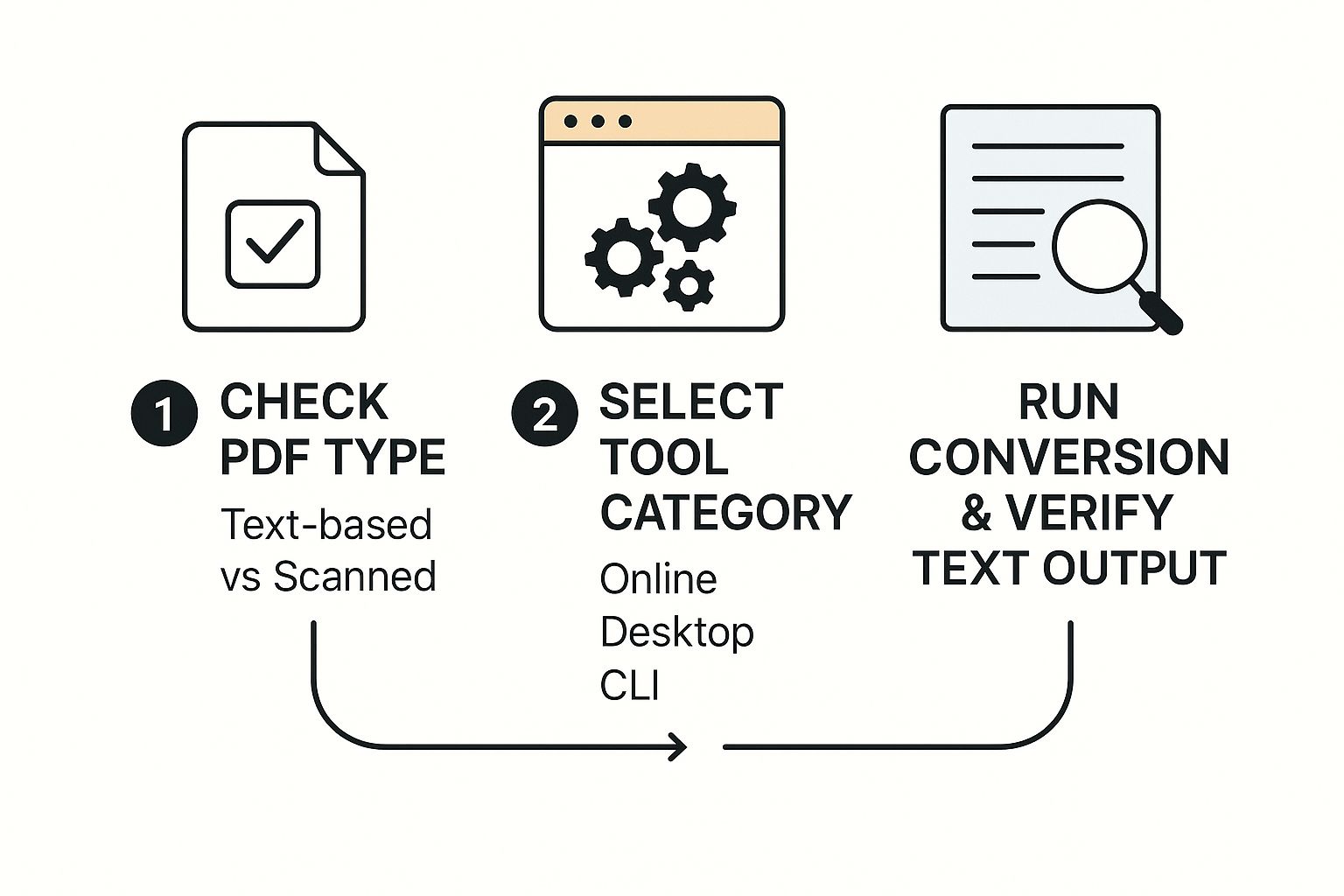
Speak4Me – A workflow showing how to choose a PDF conversion method before listening to the text.
As you can see, the first move is always to figure out what kind of PDF you're dealing with. That initial check determines whether a basic converter will work or if you need to bring in a more powerful OCR tool.
The popularity of these quick-fix tools has exploded. Some of the big platforms are now handling over 100 million PDFs every week, with conversions making up about a third of that volume. And it's not just a desktop thing anymore; around 39% of sessions are happening on mobile devices, which tells you how much people depend on these tools while on the move.
After you've pulled the text, you can paste it directly into Speak4Me to have it read back to you. It's an incredibly smooth way to review documents without being tied to your screen.
Pros and Cons of Simple Methods
Of course, "fast and free" usually comes with a few strings attached. These simple methods are no exception.
Pros: They are incredibly fast, don't require any installation, and are usually free for basic conversions. Perfect for a quick job.
Cons: You should never upload sensitive or confidential documents. They also tend to choke on complex layouts, tables, or any PDF that's basically just an image of text.
For a deeper dive into getting all sorts of information out of PDF files, not just plain text, check out a comprehensive guide on how to extract data from PDF. It's a great resource for tackling more challenging documents.
Key Takeaway: For non-sensitive, text-based PDFs, a quick copy-paste or a trusted online converter is the fastest way to get usable text from your document.
Choosing Your PDF Conversion Method
Deciding which tool to use can be tricky. It really comes down to your specific needs—the type of PDF you have, how much time you've got, and whether the document contains sensitive information. This table breaks down the common options to help you make the right call.
Method | Best For | Key Advantage | Potential Drawback |
|---|---|---|---|
Copy-Paste | Grabbing small snippets of text from native PDFs | Instant and requires no extra tools | Formatting often breaks; doesn't work on scanned PDFs |
Online Converters | Quickly converting entire non-sensitive, text-based PDFs | Extremely fast, easy to use, and accessible from anywhere | Security risks with confidential data; struggles with images |
Desktop OCR Software | Processing scanned documents or complex, image-heavy PDFs | High accuracy and works offline for better security | Often costs money and requires installation and setup |
Command-Line Tools | Developers and tech-savvy users needing automation | Powerful, scriptable, and perfect for batch processing | Requires technical knowledge and comfort with the terminal |
Ultimately, choosing the right method is about matching the tool to the task. For a simple text extraction, the first two options are fantastic. For anything more complex or sensitive, it's worth exploring more robust software.
At the end of the day, these simple methods are all about getting immediate results. They give you the power to grab the information you need in seconds. Once you have that text, you're all set to use an app like Speak4Me to turn that static document into something you can listen to. Download Speak4Me free on iOS.
Unlocking Scanned Documents with OCR
Speak4Me – Convert scanned documents to text using OCR technology and listen to them.
So far, we've been dealing with PDFs that behave nicely—the ones with digital text you can copy and paste. But what about the tricky ones? I’m talking about scanned contracts, a photo you snapped of a textbook page, or an old report saved as an image. Try to select text in one of those, and you'll quickly realize your computer sees it as just one big picture.
This is where a bit of magic called Optical Character Recognition (OCR) saves the day.
Think of OCR as a translator. It looks at an image, recognizes the shapes of letters and numbers, and turns them into actual, editable text. It’s the key that unlocks all the information trapped inside those scanned files. Without it, a scanned PDF is a dead end. With it, that document becomes searchable, editable, and ready to use in Speak4Me.
How Does OCR Actually Work?
At its core, OCR software scans the pixels of an image, hunting for patterns that match characters it knows. It methodically analyzes the distinct shapes of an 'A', a 'b', or a '7' and converts that visual data into text your computer can understand.
It's a lot like tracing letters. The software moves line by line, identifies individual character shapes, and reconstructs the words and sentences. The more sophisticated the tool, the better it gets at handling tricky fonts, crooked pages, or even low-quality scans.
Key Takeaway: OCR is the essential bridge between a static image of text and a dynamic, usable text document. It makes the un-copyable, copyable.
Keep in mind, though, that the quality of your output depends heavily on the quality of your input. A blurry, low-resolution scan is always going to give you more headaches and errors than a sharp, high-contrast one.
Getting the Best Results from an OCR Tool
Running a document through an OCR tool is pretty straightforward, but a few simple habits can make a world of difference in your final text.
Start with a Good Scan: This is non-negotiable. Garbage in, garbage out. Aim for a scan resolution of at least 300 DPI (dots per inch). Make sure the page is flat, evenly lit, and free of shadows or heavy creases.
Upload Your File: Whether you're using a web-based service or a desktop app, you’ll find a simple upload button. Just select your scanned PDF or image file.
Tell it the Language: This is a crucial step that’s easy to miss. If your document is in Spanish but the OCR is set to English, it's going to misinterpret all sorts of characters and accents. Always specify the language for the best results.
Proofread the Output: No OCR tool is perfect. Once it’s done, you'll get a block of text that needs a quick once-over. Scan for common mistakes, like confusing an 'l' for a '1' or an 'o' for a 'c'. A few seconds of fixing these little errors ensures your text is reliable.
For really tough documents, using a dedicated OCR text recognition tool can be a game-changer, dramatically improving accuracy.
Once you have that clean text, you can put it to work. Imagine pulling the text from a dense academic paper or a multi-page business report and pasting it directly into Speak4Me. Instantly, that document is no longer locked on the page—it's a hands-free audio experience, letting you absorb the information while you’re on the move.
Unlock text from any document and hear it clearly. Download Speak4Me free on iOS and give your scanned files a voice.
Automating Conversion for Heavy Workloads
When you're just converting a single PDF here and there, manual tools get the job done. But what happens when you're facing down a mountain of them? If you're dealing with dozens or even hundreds of files, clicking "convert" on each one isn't just tedious—it's completely impractical.
At this point, you need to shift your thinking from a one-off task to building a repeatable system. For these kinds of heavy workloads, automation isn't a luxury; it's the only way to convert PDF to text without losing your mind.
The Power of Intelligent Document Processing (IDP)
This is where a more advanced concept comes into play: Intelligent Document Processing (IDP). Think of a basic online converter as someone who can read a page of text. An IDP system, on the other hand, is like a skilled librarian who not only reads the words but also understands the document's structure—its chapters, tables, and key data points.
IDP leverages modern AI to do much more than just grab text. It can figure out if a document is an invoice, a contract, or a research paper. It can pinpoint and pull specific data, like an invoice number or a client's name, and even check if that information is valid. This is the kind of tech that powers serious, high-volume document workflows in big businesses.
The growth here is staggering. The global IDP market was valued at around $1.5 billion in 2022 and is expected to explode to $17.8 billion by 2032. This isn't just hype; it's driven by a real need for businesses to process massive amounts of information quickly and accurately. You can see for yourself how fast the IDP market is growing and why it matters.
For developers or anyone comfortable with a command line, automation can be as simple as writing a script. These tools can be set up to watch a folder and automatically convert any PDF that appears, creating a smooth pipeline from raw document to clean text. For larger companies, the answer often lies in enterprise-grade APIs that plug directly into their existing software, making the whole conversion process an invisible, background task.
A Real-World Automation Example
Let's make this practical. Imagine you're a researcher, and your inbox is flooded with new academic papers in PDF format every week. Instead of a manual grind, you could set up an automated script that does the heavy lifting for you.
First, it would monitor a specific folder where you save your new papers.
Whenever a new PDF arrives, it would automatically run an OCR and text extraction process.
Finally, it would save the clean text file to a different folder, ready for you to analyze or listen to with Speak4Me.
This kind of setup turns a repetitive, time-consuming chore into a completely hands-off operation. The text you get is perfectly primed for other tools. For more on what you can do with your documents once they're converted, check out our guide on the 10 best tools to chat with PDF documents.
The real goal of automation is to build a system that delivers a steady stream of useful information without you having to constantly poke at it. It’s about creating a bridge from document chaos to organized, accessible text.
By creating an automated pipeline, you ensure every important document is ready for you the moment you need it. From there, you can drop that text into Speak4Me and listen to reports, articles, and updates whenever it fits your schedule.
This approach is how you stay on top of a high volume of information without getting overwhelmed. Ready to turn your documents into audio? Download Speak4Me free on iOS.
Now, Let Speak4Me Read It All Back to You
Okay, so you’ve pulled the text out of your PDF. You're holding a clean, digital version of your document, which is a huge win. But the real magic happens when you turn that static block of words into something you can listen to anywhere. That’s where an app like Speak4Me comes in.
It couldn't be simpler. Once you have your text, just copy it all. Pop open Speak4Me on your iPhone or iPad, paste the text right into the app, and hit play. That's it. Instantly, your document starts talking to you in a natural-sounding voice.
You've just transformed a document that demanded your full visual attention into audio you can absorb while doing other things.
Fine-Tuning Your Audio Experience
What I really appreciate about Speak4Me is the control it gives you. You're not just passively listening; you're in charge of how you hear the information.
For example, if you’re digging into a dense academic paper or a jargon-filled contract, you can slow the reading speed way down to catch every nuance. On the flip side, if you're just breezing through a few news articles you saved, you can crank up the speed and power through them. You can even switch between different voices to find one that's easy on the ears for longer sessions. It makes a massive difference in how well you retain the material.
This isn't just about listening; it's about creating a personalized audio environment that matches how you learn best.
Where This Really Comes in Handy
The real-world benefits become obvious almost immediately. Suddenly, that boring commute is a productive study session. You can catch up on work reports while you’re at the gym or get through your required reading for class while making dinner. It’s also a great support for anyone who gets eye strain from staring at a screen all day.
By turning your documents into audio, you reclaim valuable time and create new opportunities for learning and multitasking throughout your day.
This simple workflow—extract, copy, paste, and play—removes the friction between you and the information you need. For a more in-depth look at getting the best results, we’ve put together a guide with more tips on PDF to speech conversion. It covers a few extra tricks for ensuring crystal-clear audio.
All that knowledge locked away in your documents is now ready to be heard. It's time to press play.
Transform your documents into audio and listen on the go. Download Speak4Me free on iOS and bring your text to life.
Common Questions About PDF to Text Conversion
Speak4Me – Frequently asked questions about converting PDFs to text.
Even with the best tools, hitting a snag when converting a PDF is practically a rite of passage. Don't worry, it happens to everyone. Let's walk through some of the most common hurdles I see and figure out how to get you back on track.
From jumbled text to security concerns, we'll cover the practical fixes you need.
Why Does My Converted Text Look Garbled?
It’s incredibly frustrating when your output is just a mess of random characters. This almost always points to one of two culprits.
First, and most common, you might be trying to use a basic text extractor on a PDF that’s really just an image—like a scanned document or a photo. Simple tools can't read pixels; they need actual text data to work with.
The other possibility is a PDF with really complex formatting or non-standard fonts that are tripping up the software.
The fix? First, double-check if your PDF is an image-based file. If it is, you’ll need a tool with Optical Character Recognition (OCR), no exceptions. If it’s a text-based file, sometimes just trying a different conversion tool is all it takes to get a clean result.
Can I Convert a Password-Protected PDF?
Yes, but there's a big "if." You almost always need the password to open the document first. Think of it like a locked door—the converter can't get inside to see the content without the key. Most tools will prompt you for the password right away.
If the PDF has a different kind of password—one that only restricts printing or copying—some advanced software might be able to work around it. But that initial "open" password is a hard stop.
Once you do get it unlocked and converted, Speak4Me is a great way to review the content hands-free.
Are Online PDF Converters Safe to Use?
This is a huge question, and the answer comes down to what’s in your document.
For anything non-sensitive, like a public article, a user manual, or class notes, online converters are fantastic. They’re fast, convenient, and you don’t have to install a thing.
However, if you're handling financial statements, legal contracts, or anything with personal data, an offline desktop application is by far the safer bet. When you upload a file, you're sending your data to a third-party server, which always carries some risk.
Good online services have privacy policies, but nothing beats the peace of mind of keeping sensitive files on your own machine. Regardless of how you convert it, Speak4Me keeps your audio playback secure and on-device.
After converting your documents, bring them to life with Speak4Me. Your text is ready, now it’s time to listen. Download Speak4Me free on iOS.
Try Speak4Me for Free
